

Inbox and sales
The lead panel: stage, source and history
The Lead details panel opens next to the conversation (or from the card in the Kanban) and brings together the pipeline stage, sales, the source salesperson, the Source (type, attribution method and the campaign → ad set → ad path), the first contact, meetings and the lead’s full history.
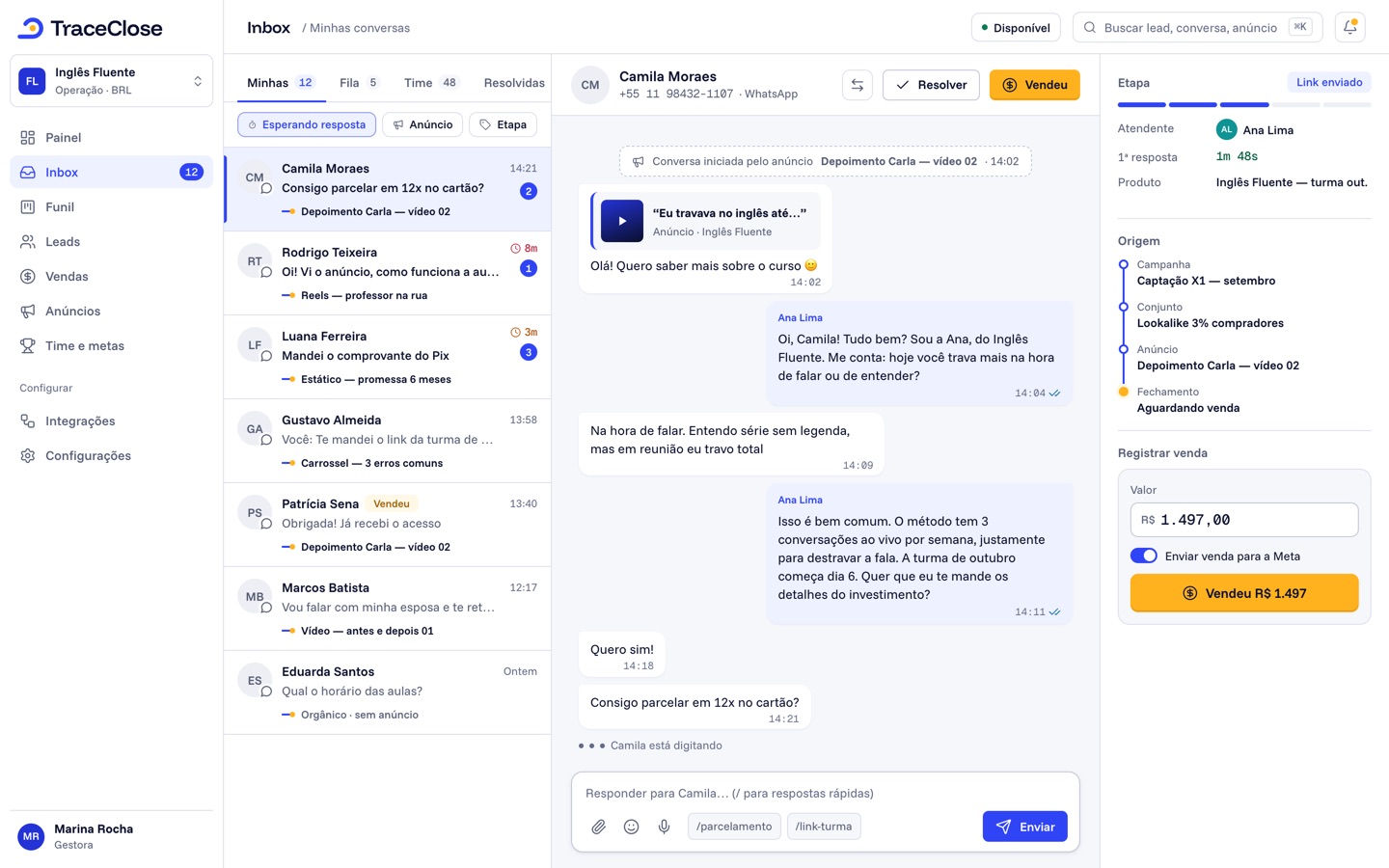
How to open it
In the inbox, open the conversation and click Lead details. In the Kanban, click the card: the panel opens with an Open conversation button. At the top you see the name, phone and email, plus the pencil for Edit details.
The panel’s sections
| Section | What it shows |
|---|---|
| Stage | The current stage, the pipeline bar (“Stage 3 of 6”), how long the lead has been in it and the selector to change stage. A lost lead shows the reason. |
| Sales | The recorded sales, the total per currency and the Record sale button. |
| Source salesperson | The lead’s owner. Managers see the Reassign button. |
| Source | Where the lead came from and the First contact (date and time). |
| Contact channels | The contact’s WhatsApp addresses linked to the lead. |
| Actions | Schedule meeting. |
| Meetings | Meetings with date, status and who scheduled them. |
| History | Everything that happened to the lead, with date and author. |
The names change with your segment: at a clinic, the panel talks about patients, receptionists and consultations. See Segment templates.
The lead’s source
The source type shows up as a badge:
- Paid traffic: the lead came from an ad. Only these count toward the campaigns’ cost per lead and cost per sale.
- Organic: the contact reached out without coming from an identified ad.
- Outbound: the conversation started from the company phone, with the team reaching out to the contact.
Next to it is how the source was identified:
- Ad click: the click-to-WhatsApp ad sent its identifier along with the first message.
- Tracked link: the message carried the tracked link’s code. See Tracked link.
- Tracked link (probable): the message came without the code, but there was exactly one click on the link in the previous 10 minutes.
- Website (UTMs): the lead came through your website’s form. See Website leads.
When there’s an ad, the panel draws the lead’s journey: Campaign → Ad set → Ad (and Website, when they went through your site), ending in Closing, with the current stage. Conversations that started from a click-to-WhatsApp ad also show Conversation started from the ad at the top of the conversation.
The history
The History records, with the date and who did it (or “system”):
- Lead created, assigned and reassigned (including “reassigned automatically — replied first”).
- Stage changes (“Stage: In conversation → Proposal”), with the reason when the lead is lost.
- Meetings scheduled and updated.
- Lead details updated and contact channels added.
- Conversion events sent to Meta, or a sending failure (“Failed to send conversion event”, and “sent later” when a retry succeeded).
- Sales recorded and canceled, and duplicates merged.
It’s the place to answer “why is this lead in this stage?” or “did the sale go to Meta?”.
Example
Example with fictional data. The lead Maria Souza (maria@example.com) shows: the Paid traffic and Ad click badges; the journey “Black Friday → Women 25–40 → Testimonial video 03 → Closing: Purchased”; first contact on Nov 14 at 10:32 a.m.; one sale of $1,290.00; and, in the history, “Conversion event sent (Purchase)”.
Didn’t work? See…
- The source says Organic, but the lead came from an ad: see Conversation with no source.
- The ad shows up without a campaign and ad set: the ad accounts haven’t synced yet. See Ad accounts and syncing.
- The history shows a conversion sending failure: see Sale not showing in Meta.
Frequently asked questions
How do I know which ad a WhatsApp lead came from?
Open Lead details in the conversation. Under Source, you see the campaign, ad set and ad when the lead came from a click-to-WhatsApp ad or a tracked link.
Can I change a lead’s source?
Not from the dashboard. The source is set when the lead arrives, based on the ad or the link.
See the path from ad to sale in your WhatsApp.
Try TraceClose free for 7 days with your team. No card needed to try.