

Inbox and sales
How to use the leads Kanban
The Kanban shows leads in columns, one per funnel stage. Drag the card (or use Move to…) to change its stage: moving to the won stage opens the sale dialog; moving to lost asks for the reason. At the top you see Open, Sold this month and Conversion.
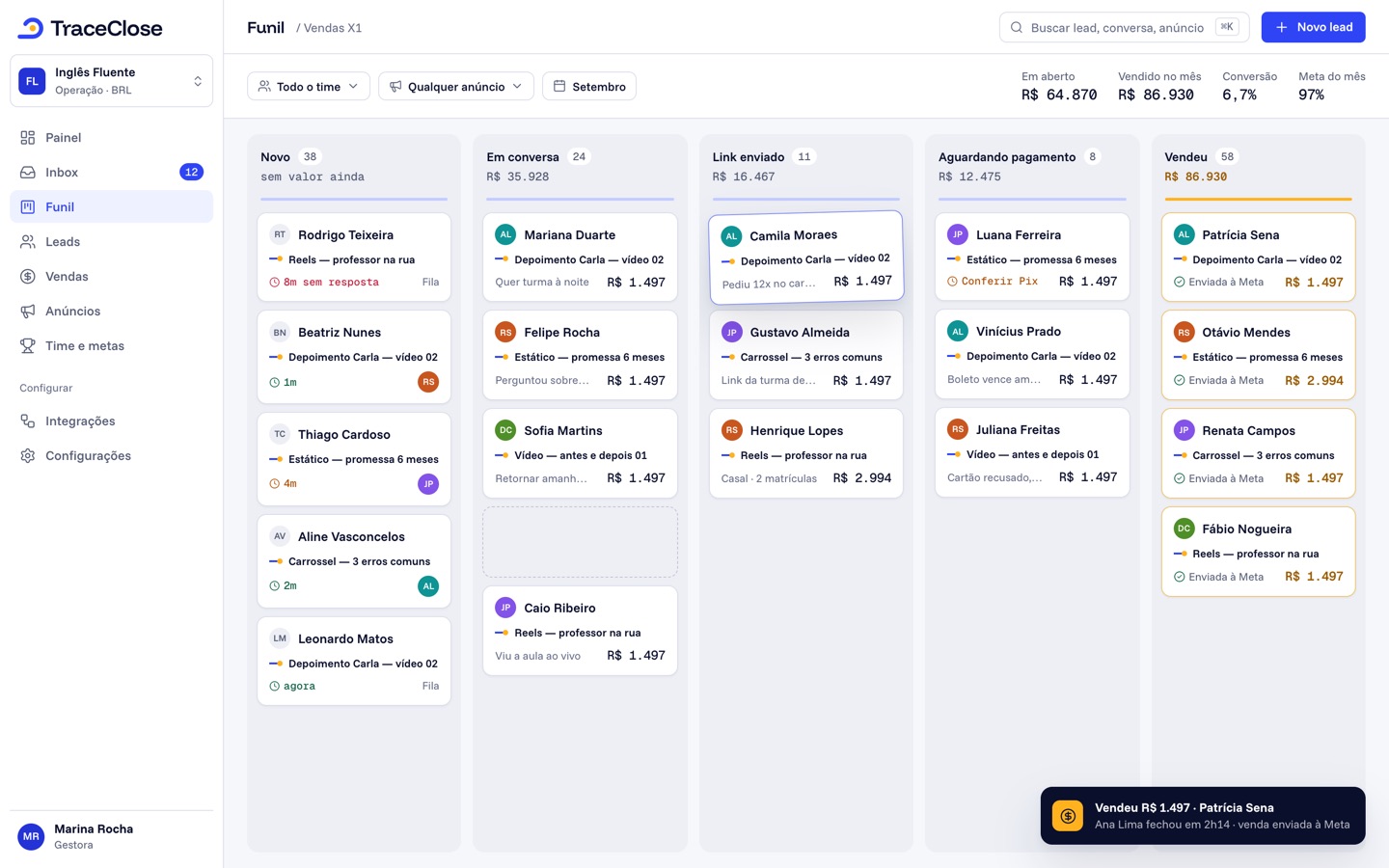
What each card shows
- The lead’s name (or phone number).
- The source ad or campaign, or the source type (Organic, Outbound).
- How long the lead has been in the stage, or Sent to ads when the sale has already gone to Meta.
- The total sold, when there’s a sale, or the owning salesperson.
Click the card to open the lead panel, with the Open conversation button.
Moving between stages
- Dragging the card to another column.
- From the menu: the card’s Move to… option.
- With the keyboard: with the card in focus, space picks up the card, the arrow keys choose the column, space drops it and Esc cancels. Enter opens the lead details.
Columns with a lock show “(automatic moves only)”: a lead only enters them through a trigger or an integration, never by hand. See Stage types and triggers.
Won and lost
When you move a lead to a won stage, the sale dialog opens (amount, currency, date); use Record later if you don’t know the amount yet. See Record a sale. When you move it to lost, enter the Reason (3 to 300 characters). The reason shows up in the lead panel and helps you see where the funnel is leaking.
Filters and columns
- Search leads: by name, phone or email.
- Salesperson: one person’s leads.
- Source: Paid traffic, Organic or Outbound, for example.
- Columns: hide stages you don’t need to see. The button shows how many are hidden and how many leads are in them; Show all brings everything back.
The board shows up to 500 leads, the ones with the most recent changes. Beyond that, a notice appears: use the filters to find the rest.
The numbers at the top
| Indicator | What it is |
|---|---|
| Open | How many leads haven’t been won or lost yet (open and meeting stages). |
| Sold this month | The sum of this month’s sales, per currency. |
| Conversion | Of the leads that came in this month, how many have already been won (wins ÷ leads received this month). |
For salespeople, all three numbers only include their own leads and sales.
Example
Example with fictional data. At Example Co.’s real estate agency, the board has the columns New lead, In progress, Viewing scheduled, Viewing done, Offer, Deal closed and Lost. The agent drags a client from Offer to Deal closed, records a $12,000.00 commission and the card starts showing the amount. At the top: 86 open, $48,000.00 sold this month and 4% conversion.
In the Kanban, salespeople only see the leads where they are the source salesperson. Managers and owners see all of them.
Didn’t work? See…
- The card won’t go into a column: it’s an automatic-moves-only column. Change that in Settings › Pipeline (“Allow manual moves”).
- A lead disappeared from the board: it may be in a hidden column or have been merged with another lead. See Duplicate leads.
- Want to change the columns: see Funnel and stages.
Frequently asked questions
Do salespeople see other people’s leads in the Kanban?
No. In the Kanban, salespeople only see their own leads. In the inbox, the conversation with any lead is visible to the whole team.
Can I move a lead back to an earlier stage?
Yes, by moving it by hand. It’s the automatic triggers that only move leads forward.
See the path from ad to sale in your WhatsApp.
Try TraceClose free for 7 days with your team. No card needed to try.