

Funnel and operations
How to organize your sales funnel and stages
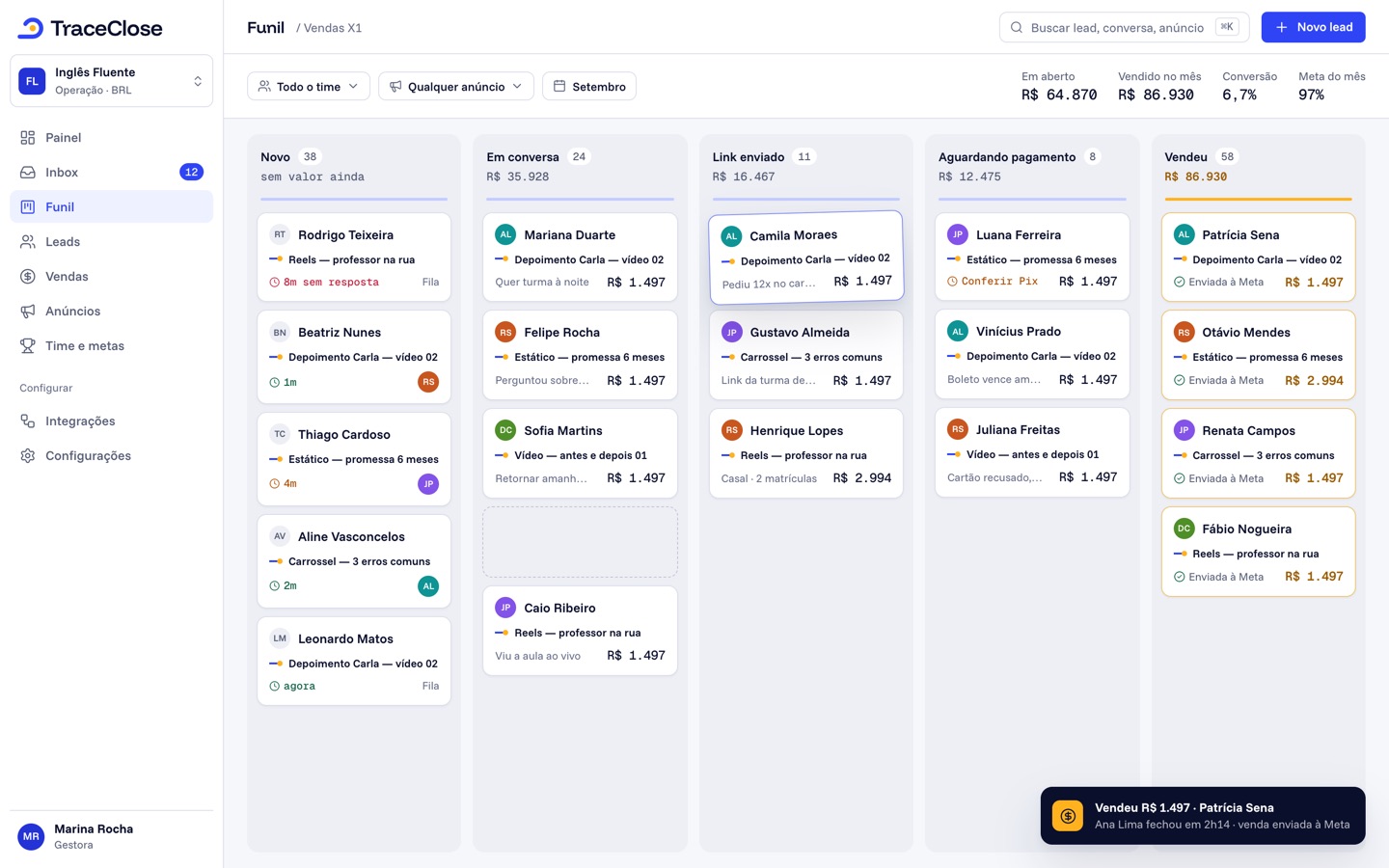
The funnel is the sequence of stages a lead moves through, from the first message to a sale or a loss. It comes ready with your segment’s template, and you adjust it in Settings › Pipeline: add, rename, reorder and archive stages, then click Save pipeline. Each stage becomes a Kanban column.
Step by step
Open the editor
Go to Settings › Pipeline (managers and owners only). Stages appear in the order leads move forward; the first one is the Entry.
Adjust the stages
Change the Name, Type, Trigger and color. Use Add stage to create one, and the arrows (or drag and drop) to reorder.
Archive what you don’t use
Click Archive on the stage and, under Move leads to, choose the stage that will receive its leads.
Save
Click Save pipeline. To undo everything before saving, use Discard changes.
Funnel rules
- From 1 to 20 stages.
- The first stage is the Entry: every new lead starts there, and it must be of type Open.
- The funnel needs at least one Won stage and one Lost stage.
- Each trigger can be on only one stage.
- A stage name has up to 60 characters and can’t repeat the name of a stage that exists or once existed.
If anything breaks these rules, the editor highlights the field and shows “Fix the highlighted fields before saving.”
What you can set on each stage
| Field | What it does |
|---|---|
| Name | How the stage shows up on the Kanban board and across the dashboard. Under Translations (optional), you can name it in the other dashboard languages for people who use them. |
| Type | Open, Meeting, Won (sale) or Lost. It defines how the stage counts in reports. |
| Trigger | Moves the lead to the stage automatically: on the first reply, when a meeting is scheduled or when a meeting is held. |
| CAPI event | The event sent to Meta when the lead enters the stage. |
| Allow manual moves | When off, only a trigger or an integration can move a lead to the stage. |
| Color | The color of the column and of the stage badge. |
Types, triggers and events are covered in detail in Stage types and triggers.
Archiving a stage
Stages aren’t deleted, they’re archived. When you save, the stage leaves the board and its leads go to the stage you picked; their history stays. A newly created stage that hasn’t been saved yet can be dropped with Remove new stage. Changed your mind before saving? Keep stage undoes the archiving.
A stage that has leads can’t change type (“With leads in this stage the type can’t change.”). To do that, create a new stage with the right type and archive the old one, moving its leads.
Changing the funnel doesn’t send conversions
Reorganizing stages, archiving them or switching templates sends no events to Meta, even when leads change stage because of it. Events go out only when a lead enters a stage during day-to-day work.
Example
Example with fictional data. Example Co. sells coaching and uses the Digital products template: New lead → In conversation → Call scheduled → Link sent → Purchased, plus Lost. The manager adds “Awaiting payment” between Link sent and Purchased, of type Open and with no trigger, and saves. The new column shows up right away on the whole team’s Kanban board.
Didn’t work? See…
- I can’t open Settings › Pipeline: it’s for managers and owners only. See Managers only.
- “Someone else changed the settings while you were editing”: another manager saved first. Reload and redo your changes.
- You want to replace the whole funnel with another segment’s: see Segment templates.
Frequently asked questions
How many stages can the funnel have?
Up to 20, counting the entry, won and lost stages.
Can I have more than one funnel?
No. Each organization has one funnel. For very different operations, use separate organizations.
Does deleting a stage delete its leads?
No. The stage is archived and its leads go to the stage you choose, with their history preserved.
See the path from ad to sale in your WhatsApp.
Try TraceClose free for 7 days with your team. No card needed to try.