

Inbox and sales
How to handle your team’s WhatsApp in the inbox
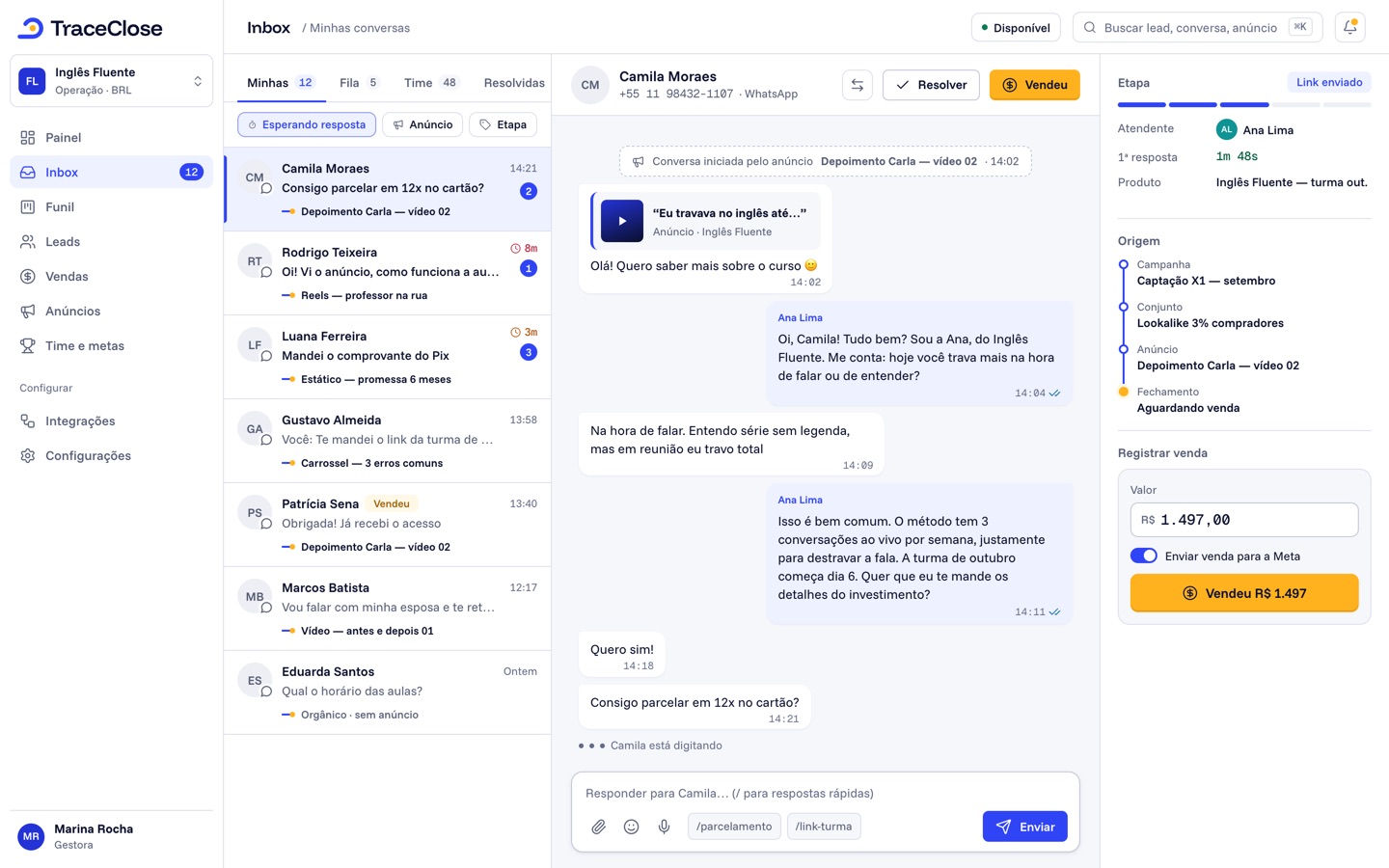
In the Inbox, your whole team works the same WhatsApp number, each person with their own login. Conversations are split into the Mine, Unassigned, Waiting and All queues, and next to each conversation you see where the lead came from: campaign, ad set and ad.
Step by step
Open the inbox
In the side menu, click Inbox. The conversation list is on the left and the open conversation is in the center.
Pick a queue
Start with Mine (your leads) and Waiting (people waiting for a reply). Unassigned shows what doesn’t have a salesperson yet.
Reply
Type in the message field and press Enter to send (Shift + Enter adds a line break). To talk only to your team, switch Send as to Internal note.
See the lead’s details
Click Lead details to open the panel with stage, sales, source, meetings and history.
Resolve
When the matter is done, click Mark as resolved. If the customer writes again, the conversation reopens on its own.
Your whole team on one number
You connect the WhatsApp number once, in Settings › Channels, and everyone on the team replies through it in the inbox. Every message sent from the dashboard is logged with the name of whoever sent it. By default, the customer receives the message signed with the salesperson’s name in bold (you can turn this off; see Auto greeting and signature).
Anyone on the team can see and reply to any conversation, salespeople included. What changes between roles is the rest of the dashboard: in the Kanban and in the numbers, salespeople only see their own leads. Details in Roles and permissions.
When two people open the same conversation, each one sees when the other is typing (“Alex is replying…”), which prevents double replies.
What each conversation in the list shows
- The contact’s name (or phone number), the last message and how long ago it arrived.
- The number of unread messages.
- Source: the ad name, Organic · no ad or Team outreach (when the conversation started from the company phone).
- The salesperson who owns the lead, or the Unassigned badge.
- Attention badges: Waiting (customer waiting for a reply), Late (waiting longer than the maximum time you set) and New (nobody has replied yet).
Queues, search and filters are covered in Inbox queues and filters.
Message or internal note
The Send as selector sits next to the text field. With Message, the text goes to the customer on WhatsApp. With Internal note, it stays in the dashboard, visible to the team, with your name on it. Use notes to coordinate with a coworker (“customer asked for a discount, can the manager approve?”) without the customer seeing it. Internal notes don’t accept attachments or audio.
To send a file or record audio, see Send files and audio. For text your team repeats all the time, use quick replies (type / at the start of the message).
Message status
Each sent message shows its progress: Sending, Sent, Delivered, Read or Failed. If it fails, a Resend button appears. Messages someone sent straight from the connected phone also show up in the conversation, marked Company phone.
Resolve, reopen and mark as unread
- Mark as resolved: takes the conversation off the to-do list and clears the unread count for the whole team. A new message from the customer reopens it automatically.
- Reopen: sets a resolved conversation back to open.
- Mark as unread: applies only to you, as a reminder to come back later.
Example: a day at Example Co.
Example with fictional data. Example Co. has three salespeople on the same number. At 9 a.m., a message arrives from an ad in the “Black Friday” campaign: the lead comes in, goes to Ana through the lead rotation and appears in her Mine queue with the New badge and the source “Carousel ad 02”. Ana replies within 3 minutes, writes “wants to pay in 10 installments” in an internal note and, at the end of the day, records the sale in the lead panel. The revenue shows up under the right ad in the reports.
Didn’t work? See…
- Messages stopped arriving or replies show as Failed: the number may have disconnected. See WhatsApp disconnected.
- The conversation shows as organic, but it came from an ad: see Conversation with no source.
- A salesperson isn’t getting new leads: see Salesperson not getting leads.
- WhatsApp groups don’t come into the inbox, and the number’s old history isn’t imported: only what arrives after you connect.
Frequently asked questions
Can several agents use the same WhatsApp number?
Yes. You connect the number once and the whole team replies through the inbox, each person with their own login. Messages go out signed with the name of whoever replied, if the signature is on.
Can I transfer a conversation to another salesperson?
There’s no “transfer conversation”: what changes is the lead’s owner. The manager uses Reassign in the lead panel. And if a salesperson replies before the owner, the lead moves to whoever replied.
Do salespeople see each other’s conversations?
Yes, and they can reply: the inbox is shared. In the Kanban and the reports, salespeople only see their own leads and numbers.
See the path from ad to sale in your WhatsApp.
Try TraceClose free for 7 days with your team. No card needed to try.