

Connect
How to connect WhatsApp with a QR code
In Settings › Channels, click New instance, enter a name and click Create and generate QR. On your phone, open WhatsApp › Linked devices › Link a device and point the camera at the code. You keep the same number and the same phone.
Step by step
Open Channels
In the dashboard, go to Settings › Channels (the screen is called Instances) and click New instance.
Enter a name
In Instance name, use lowercase letters, numbers and hyphens, like
sales-1. Keep the provider that’s already selected and click Create and generate QR.Scan the QR code
On the phone with that number: WhatsApp › Linked devices › Link a device, then point the camera at the code. It refreshes on its own every few seconds.
Or use the pairing code
If the camera won’t cooperate, use the pairing code shown below the QR, with WhatsApp’s option to link with a phone number instead.
Check the status
Once it shows Connected, new messages start arriving in the inbox.
Before you start
- Only owners and managers can open Settings › Channels, and the account email must be confirmed.
- Keep the phone with that number nearby, connected to the internet.
- The number keeps working on the phone: TraceClose joins as one more linked device.
- Instance names are unique; if the one you want is taken, pick another.
The Instances screen
Each row shows the Instance, the Number, the Status (Connected, Connecting or Disconnected) and, under Checked, how long ago the status was checked. The row’s button is Connect (opens the QR again) or Disconnect.
What reaches the inbox
- Conversations that come in after you connect. Older chat history on the phone isn’t imported.
- Group messages aren’t included.
- Each new conversation becomes a lead in the funnel and is assigned by the rotation.
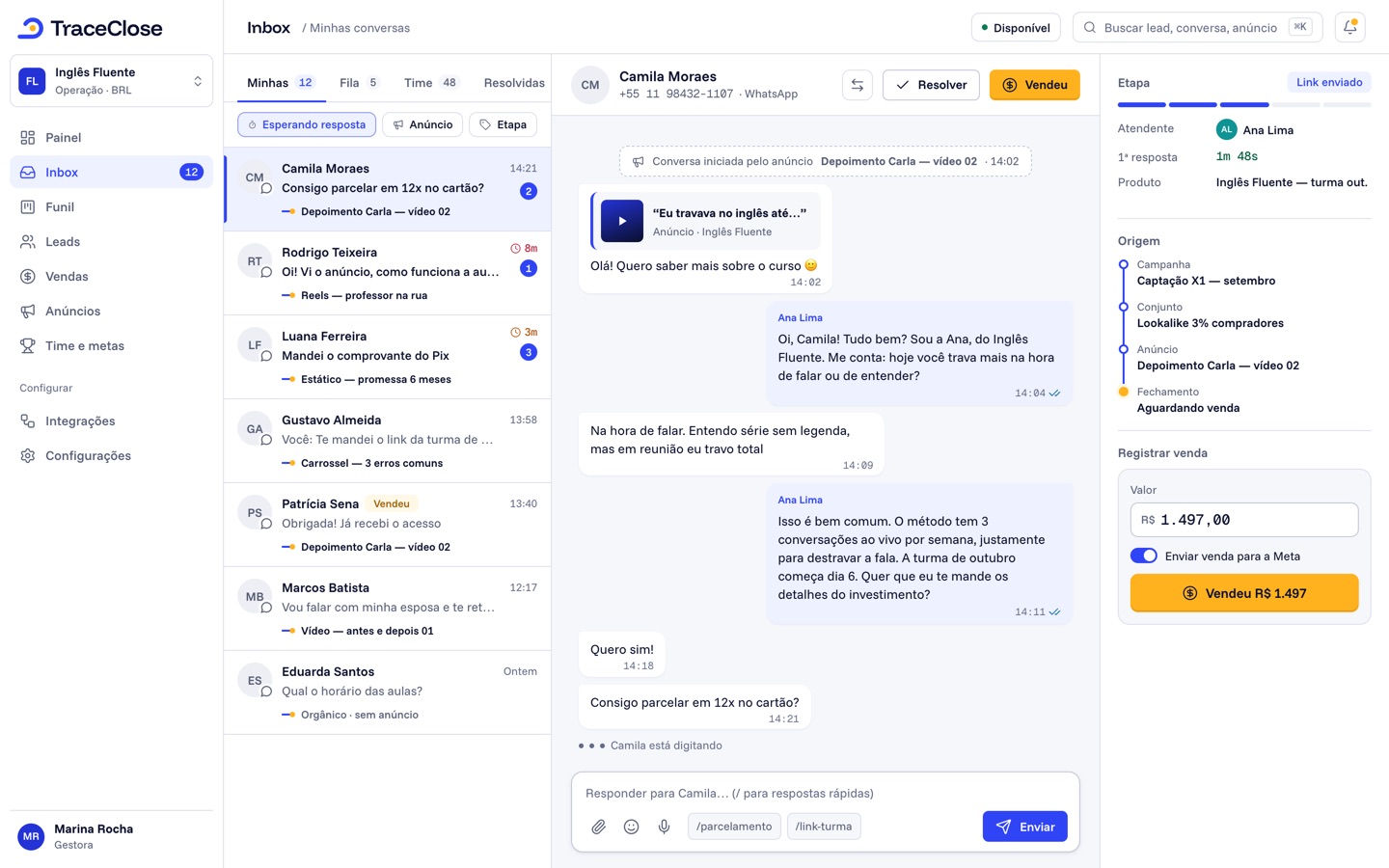
- If the conversation came from a click-to-WhatsApp ad, the lead already shows the source (see how).
Example
Fictional example: Example Co. handles sales on its business number, +1 212-555-0188. The manager creates the sales-1 instance, scans the QR with the front desk phone and, two minutes later, the first conversation from an ad lead shows up in Unassigned and is assigned to Ana, a salesperson.
Disconnect and reconnect
Disconnect stops messages from coming in; a reply sent while the number is disconnected may end up as Failed: after you reconnect with the QR code, use Resend on the message. If the connection drops on its own, a WhatsApp disconnected banner appears at the top of the dashboard with a Reconnect button. There’s no button to delete an instance.
Didn’t work? See…
- The QR expired or won’t scan: click Generate new and see the QR code won’t connect.
- It was connected and dropped: WhatsApp disconnected.
- Limit error when creating it: the number of instances depends on your plan (plan limit reached).
Frequently asked questions
Do I need to change my number?
No. You connect the number you already use, and the phone keeps working as usual.
Do my old conversations show up in TraceClose?
No. Only messages that arrive after you connect.
Can I connect more than one number?
Yes, one instance per number, within your plan’s limit. See multiple WhatsApp numbers.
See the path from ad to sale in your WhatsApp.
Try TraceClose free for 7 days with your team. No card needed to try.